
Securing a Telegram channel after purchase involves protecting the Buyer’s Telegram account and reviewing the channel’s administrative access after Sebuda completes the ownership transfer.
Sebuda handles the channel ownership transfer through Telegram’s built-in transfer feature and verifies that the Buyer’s Telegram account has become the channel’s Owner. The Buyer does not need to take over the Seller’s personal Telegram account or independently verify the ownership transfer.
Important: Sebuda manages and verifies the ownership transfer. The Buyer should wait for Sebuda’s confirmation and follow the applicable inspection procedure before changing channel settings or administrative permissions.
Before Making Any Channel Changes
Follow Sebuda’s inspection procedure before modifying the delivered channel. Unless Sebuda specifies a different period for the transaction, the Buyer normally has one hour from receiving functional access to inspect the channel and report a material issue.
During inspection, check whether the channel matches the listing, including:
- The channel name and username.
- Existing posts and content.
- Subscriber numbers and available audience information.
- Available channel statistics.
- Visible restrictions or functional issues.
- Any additional assets included in the transaction.
Do not publish, edit, or delete posts; change channel information; remove administrators; modify bot access; or make other material changes during inspection.
If something materially differs from the listing, contact the Sebuda Admin Team through the website’s official communication system before making changes. A message sent only to the Seller is not a formal cancellation request.
Follow any transaction-specific inspection or handover instructions provided by Sebuda.
Prepare Your Telegram Account Before the Transfer
1. Use a Telegram Account You Control
Provide Sebuda with the Telegram account you want to use to receive the channel.
Before the transfer, confirm that:
- The connected phone number belongs to you and remains accessible.
- Your device is protected with a screen lock.
- You use an updated official Telegram application.
- Your recovery email, if configured, is accessible and secure.
- Your account is not shared with the Seller or an unauthorized third party.
Keep your Telegram account connected to a current phone number that you control, even when other login methods are available.
These preparations should normally be completed on your own account before Sebuda transfers the channel.
2. Enable Two-Step Verification
Open:
Settings → Privacy and Security → Two-Step Verification
Create a strong, unique password and configure a recovery email that only you control.
The password should:
- Be different from passwords used for other accounts.
- Avoid names, phone numbers, and other easily guessed information.
- Be stored securely in a password manager.
- Remain private.
Protect the recovery email with its own strong password and two-factor authentication.
Telegram’s Two-Step Verification adds an extra password to the login process. The recovery email helps you regain access if you forget that password.
Important: The channel itself does not have a separate login password. Two-Step Verification protects the Telegram account that owns it.
3. Review Active Sessions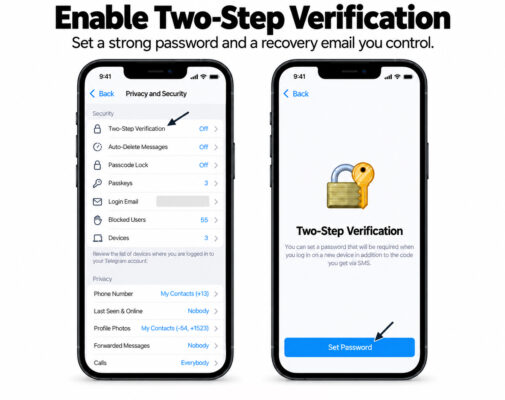
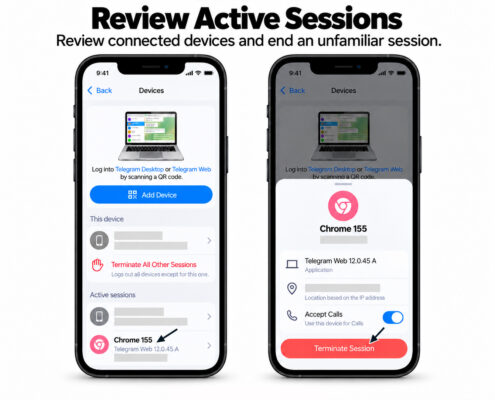
Open:
Settings → Devices
Depending on the application, this section may also appear as Active Sessions under Privacy and Security.
Review the listed devices and terminate sessions that you do not recognize or no longer use.
Check the device type, application, and recent activity rather than relying only on the displayed location, which may be affected by your connection or VPN.
If Telegram temporarily prevents a newly connected device from terminating older sessions, follow the restriction displayed in the application.
Avoid repeated logins or excessive verification-code requests while resolving access issues.
4. Protect Your Phone Number and Device
Your phone number remains an important part of your Telegram account’s security.
To reduce the risk of unauthorized access:
- Keep the number active and under your control.
- Use a SIM PIN where supported.
- Enable account protection offered by your mobile provider.
- Protect your phone and computer with strong screen locks.
- Keep your operating system and Telegram application updated.
- Avoid using Telegram on shared or untrusted devices.
A SIM PIN protects the physical SIM card. Protection against unauthorized SIM replacement or number transfers should also be addressed through your mobile provider.
Let Sebuda Complete the Ownership Transfer
5. Provide the Correct Recipient Account
Provide the Sebuda Admin Team with the Telegram account that should receive the channel.
Make sure the account details are accurate, particularly when similar names or usernames exist.
Identifying the recipient account does not require sharing:
- Telegram login codes.
- Your Two-Step Verification password.
- Your recovery email password.
- Passkeys.
- SIM-card access.
- Login QR-code approval.
Important: Never disclose your account authentication credentials to the Seller or anyone claiming that they are needed to receive channel ownership.
6. Wait for Sebuda’s Transfer Confirmation
Sebuda coordinates and completes the ownership transfer and verifies that your Telegram account has become the channel’s Owner.
The Buyer does not need to initiate the transfer with the Seller, request the Seller’s personal Telegram credentials, or independently verify the ownership change.
If Telegram imposes a security waiting period or another transfer restriction, Sebuda will coordinate the next steps with the parties.
These restrictions may depend on the transferring account’s Two-Step Verification settings, recent password changes, or device-session age. The exact requirement shown by Telegram should be followed.
Important: Telegram’s transfer eligibility restrictions are separate from the Buyer’s account-security preparations. They do not establish a mandatory seven-day delay before protecting your own Telegram account.
Wait for Sebuda’s confirmation and follow the inspection instructions before making changes to the channel.
Secure Channel Access After the Handover
7. Review All Administrators
After Sebuda confirms the ownership transfer and the applicable inspection procedure has been completed, open:
Channel Profile → Edit or Manage Channel → Administrators
Review every administrator and determine:
- Who controls the account.
- Why it needs access.
- Whether continued access was included in the transaction.
- Which permissions it needs.
Remove the Seller’s remaining administrator access unless continued access was expressly included in the agreed arrangement.
If Sebuda has already removed that access during the handover, no further removal is necessary.
Remove unknown or unnecessary administrators. For legitimate team members, grant only the permissions required for their work.
Pay particular attention to permissions for:
- Publishing posts.
- Editing or deleting messages.
- Changing channel information.
- Managing invite links.
- Adding other administrators.
Important: Protecting your own Telegram account does not remove another person’s separate administrator access.
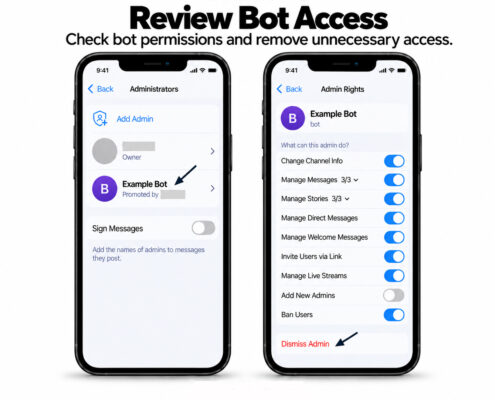
8. Review Bots and Publishing Services
Check every bot with administrative access, including bots used for scheduling, moderation, analytics, or automated publishing.
Remove bots that are unknown, unnecessary, or still operated by the Seller when continued access was not agreed.
For services that remain, verify who controls their:
- Service dashboard.
- Login credentials.
- Bot credentials or tokens, where applicable.
- Hosting.
- Publishing configuration.
If a custom bot is included in the purchase, its handover should be coordinated separately through Sebuda. Receiving the channel does not automatically give you control over the bot or its external infrastructure.
Coordinate necessary changes before disabling a service that supports essential channel functions.
9. Review Any Linked Discussion Group
If the channel has a linked discussion group, review that group separately.
A common route is:
Channel Settings → Discussion
Check the group’s administrators, bots, and permissions.
Confirm whether the group was included in the transaction. If it was, Sebuda should coordinate its agreed handover separately from the channel.
If it was not included, contact the Sebuda Admin Team before changing the existing connection.
Do not assume that receiving a channel also gives you control over every connected group or service.
10. Review Invite Links
Open the channel’s invite-link settings and review the available links.
Identify links used for:
- Existing subscriber access.
- Advertising campaigns.
- Paid memberships.
- Partner promotions.
- Previous administrators’ activities.
Revoke unnecessary private invite links when appropriate, while considering links still needed for legitimate operations.
Important: An invite link allows someone to join the channel. It does not, by itself, grant administrator or ownership rights.
Changing the channel’s public username is not normally necessary simply to secure ownership. Consider the effect on existing links, audience recognition, and promotions before changing it.
11. Check Scheduled Content and External Links
Inspect the channel for:
- Scheduled posts.
- Pending advertisements.
- Pinned messages.
- Contact information in the description.
- External website links.
- Automated publishing arrangements.
- Promotional commitments disclosed by the Seller.
Make sure operational contact details and external services are appropriate for your management of the channel.
If an unexpected item may relate to the agreed transaction, report it through the Sebuda transaction chat before deleting or changing it.
Avoid unnecessary bulk deletion or major rebranding immediately after the handover. Review existing content and commitments before making changes.
Add Further Protection to Your Telegram Account
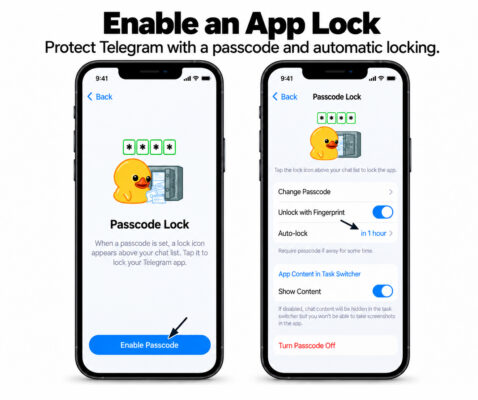
12. Enable an App Lock
Open Telegram’s Privacy and Security settings and enable the available passcode or biometric lock.
Choose an appropriate automatic-lock period, especially if other people can access your device.
Telegram’s local app lock helps protect access on that device. It serves a different purpose from Two-Step Verification, which protects account login.
Use both alongside your device’s screen lock.
13. Consider Using a Passkey
Where supported, open:
Settings → Privacy and Security → Passkeys
A passkey provides an additional login method using your device’s authentication, such as a PIN, fingerprint, or face recognition.
Review existing passkeys and remove any you do not recognize. Protect the device or password manager where your passkeys are stored.
Keep Two-Step Verification enabled and maintain control of the connected phone number.
Protect Against Phishing and Fake Support Requests
Channel owners may receive messages claiming that they must verify ownership, resolve a copyright complaint, receive an advertising payment, or prevent a channel restriction.
Treat requests for login codes, passwords, passkeys, or QR-code approval as suspicious.
To protect your account:
- Never share Telegram authentication codes.
- Never enter your Two-Step Verification password into a bot or unfamiliar website.
- Never scan or approve a login QR code sent by an unknown person.
- Verify security warnings through the official application.
- Treat unexpected sponsorship files, contracts, and download links cautiously.
- Do not install software provided by an unfamiliar advertiser or supposed support representative.
If you notice unexpected posts, deleted messages, new administrators, or changed settings, review your account sessions and channel permissions immediately.
If the transaction is still active, notify the Sebuda Admin Team through the website’s official communication system.
Final Security Checklist
After Sebuda confirms the handover and the inspection procedure is completed, confirm that:
- Your Telegram account uses a strong Two-Step Verification password.
- Your connected phone number remains under your control.
- Your recovery email is accessible and protected.
- Active account sessions have been reviewed.
- Unnecessary administrator access has been removed.
- Remaining administrators have appropriate permissions.
- Bots and external publishing services have been reviewed.
- Any included discussion group or additional asset has been addressed through Sebuda.
- Invite links and scheduled content have been reviewed.
- Your device and Telegram application are protected with appropriate locks.
Sebuda handles and verifies the ownership transfer. This checklist covers the Buyer’s account security and the channel-access review after the handover.
Maintain Security Over Time
Review account sessions and channel administrators regularly, and repeat the review whenever a team member leaves or a publishing service changes.
Keep your recovery information current and store security credentials safely.
Change passwords when they are exposed, reused, weak, or suspected of being compromised. Routine monthly password changes are not a substitute for reviewing access and maintaining strong authentication.
Transaction completion and cancellation remain governed by Sebuda’s Transaction Rules. Buyers should also review the Rules for Buyers.
Interface Notice
Menu names and available options may differ between Telegram for Android, iPhone, Desktop, and other supported applications.
Follow the current in-app instructions and any transaction-specific guidance provided by the Sebuda Admin Team.