
To use certain features on Sebuda, you may need to verify your identity through the Identity Verification (KYC) process.
Identity verification is completed through the Profile section of your Sebuda account.
Before starting, make sure that the first name and last name entered in your Sebuda profile exactly match the information shown on your identity document.
Below, you can find the step-by-step instructions for completing Identity Verification on both mobile and desktop.
Identity Verification on Mobile
1. Log in to Your Sebuda Account
First, go to Sebuda.com and log in to your account.
Then, tap the Menu ☰ icon at the top of the page.
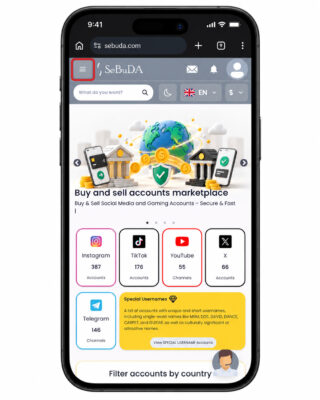
2. Open Your Profile
After opening the menu, scroll down and select Profile.
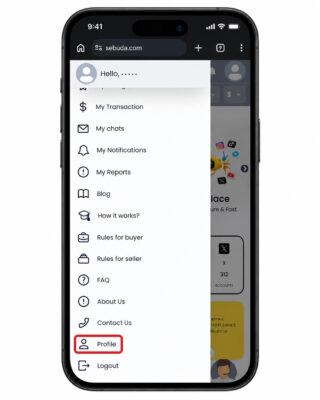
3. Check Your First and Last Name
On the Profile page, check your First Name and Last Name.
Your first and last name must exactly match the information shown on the identity document you will use for verification.
If your name has not been entered yet or needs to be corrected:
- Enter your First Name.
- Enter your Last Name.
- Tap Update to save the information.
4. Go to the KYC Verification Section
On the same Profile page, scroll down until you find the KYC Verification section.
If you have not completed Identity Verification yet, your account will show:
Status: UNVERIFIED
Tap Verify Yourself to start the verification process.
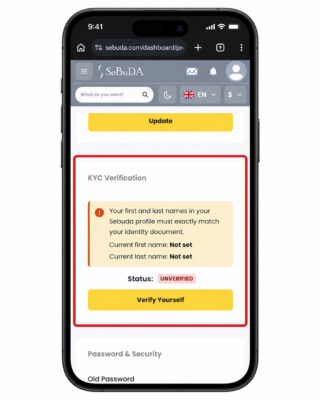
5. Complete the Identity Verification Process
After tapping Verify Yourself, follow the instructions shown on the screen.
Provide the requested information and identity documents according to the verification instructions.
Once the verification process has been successfully completed and approved, your KYC status will be updated accordingly.
Identity Verification on Desktop
The Identity Verification process on desktop is very similar to the mobile process.
1. Log in to Sebuda
Go to Sebuda.com and log in to your account.
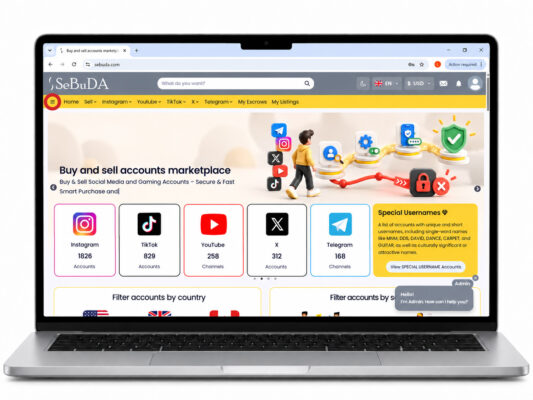
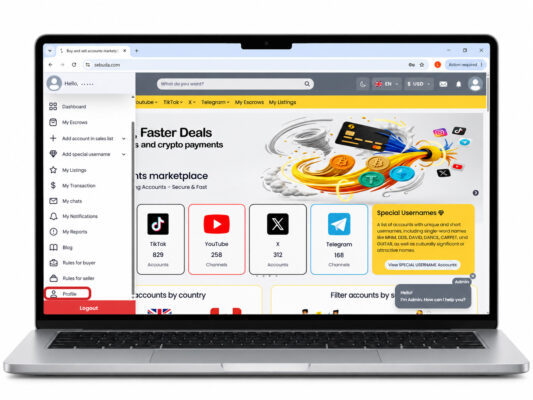
2. Open Your Profile
From your account menu, select Profile.
3. Check Your Personal Information
On the Profile page, review your First Name and Last Name.
These details must exactly match the first and last name shown on the identity document you will use for verification.
If necessary, correct your information and click Update to save the changes.
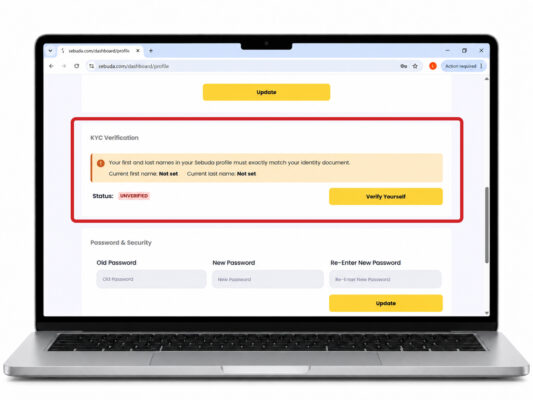
4. Find the KYC Verification Section
Scroll down to the KYC Verification section.
If your identity has not been verified yet, you will see:
Status: UNVERIFIED
Click Verify Yourself to begin the verification process.
5. Complete Your Identity Verification
Follow the instructions shown on the screen and provide the requested information and documents.
Once your information has been reviewed and approved, your Sebuda Identity Verification process will be completed.