
Your email account can be used to reset passwords, receive security alerts, and recover access to your social media accounts. Protecting it is an essential part of protecting your Instagram, TikTok, X, and YouTube accounts.
This guide explains how to secure your email account by reviewing your password, recovery information, sign-in methods, active sessions, and mailbox settings. It includes additional guidance for Gmail, Outlook, Yahoo Mail, and Proton Mail.
Important: Being able to open an inbox does not necessarily mean that you have exclusive control of the email account. Other people may still have access through recovery methods, active sessions, connected applications, or automatic forwarding.
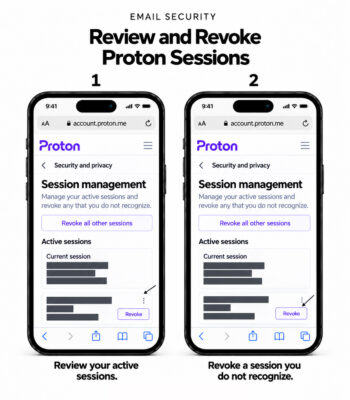
Visual Guide Notice: These visual guides show email account settings on an iPhone (iOS). Menu names, available options, and layouts may differ depending on your device, operating system, app or browser version, and future updates.
Before Making Any Security Changes
First, identify which situation applies to you.
You are securing your own email account: Review your existing security settings, strengthen your sign-in protection, and confirm that your recovery methods work.
An email account is included in an agreed handover: Follow the applicable transaction instructions before making changes. Review all remaining access and recovery methods carefully. Changing a password alone does not establish exclusive control.
You suspect unauthorized access: Use a trusted device and follow your provider’s compromised-account procedure immediately. Do not delay urgent security actions to follow a routine waiting schedule.
Google and Microsoft provide dedicated instructions for compromised accounts, including reviewing security activity and checking account settings.
For a YouTube Brand Account transfer, use your own secure Google Account to receive ownership. The transfer should normally take place through Google’s ownership system without exchanging the Seller’s personal Google Account password.
See Sebuda’s YouTube channel security guide for the recommended procedure.
Recommended Email Security Procedure
1. Use a Trusted Device
Make security changes from a device you control.
Before starting:
- Update your operating system, browser, and email application.
- Remove unfamiliar browser extensions.
- Avoid shared computers.
- Use the provider’s official website or application.
- Enable a screen lock on your device.
If you suspect malware, use a different trusted device to secure the account. Entering a new password on an infected device may expose it again.
2. Review Security Activity
Open your email provider’s account-security settings and inspect recent activity.
Look for:
- Sign-ins you do not recognize.
- Devices you no longer use.
- Unexpected password changes.
- Recovery information you did not add.
- New authentication methods.
- Security changes you did not authorize.
Do not judge a sign-in by its location alone. Mobile networks and VPNs can affect the location shown. Consider the device, time, and type of activity together.
For Gmail, review your Google Account’s security events and devices. For a personal Outlook account, review the Microsoft Account’s Recent activity page.
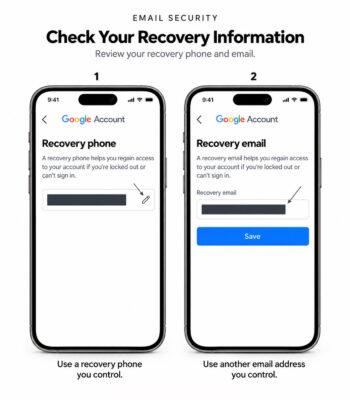
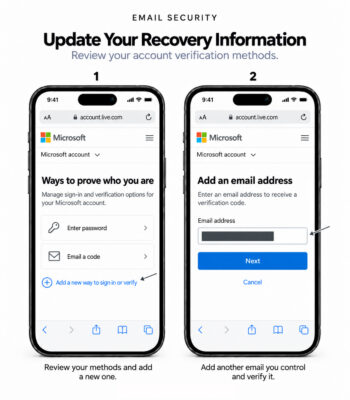
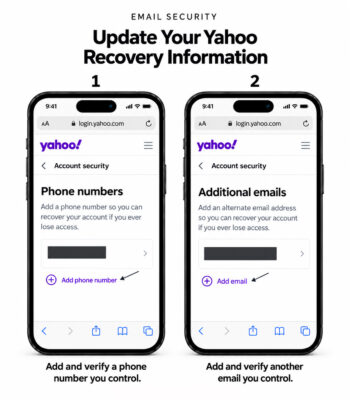
3. Verify Your Recovery Information
Make sure that your recovery email address and phone number belong to you and remain accessible.
Before removing a legitimate recovery method, add and verify a replacement where the provider allows it. Keep a working route back into the account throughout the process.
For Gmail:
- Open your Google Account.
- Select Security & sign-in.
- Review Recovery phone and Recovery email.
- Add or update your information.
- Complete any verification requested.
Review recovery contacts as well if that feature is available.
Important: Google may continue sending verification codes to previous recovery information for seven days after a change. A new recovery phone number may also take up to seven days to become fully effective. Updating the displayed information should not be treated as proof that previous recovery access has immediately ended.
For personal Outlook accounts, manage verification methods through your Microsoft Account’s security settings.
Important: Removing all Microsoft Account security information can place the account in a restricted state for 30 days. Avoid removing every method together during routine maintenance. If unauthorized changes are involved, follow Microsoft’s official recovery instructions.
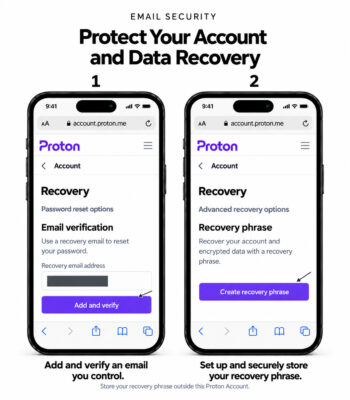
Proton Mail requires both account recovery and encrypted-data recovery protection. See the Proton recovery guidance in Step6.
4. Use a Strong and Unique Password
If your password is reused, exposed, weak, or known to another person, replace it.
Sebuda recommends a randomly generated password of at least 16 characters where supported. Store it in a password manager and use a different password for every account.
Do not reuse your social media password for your email account.
When making routine changes, confirm that your recovery methods are accessible before replacing the password. If you suspect unauthorized access, follow the provider’s urgent security procedure instead.
Important: Do not assume that changing the password removes every other form of access. Continue reviewing sessions, authentication methods, connected applications, and mailbox settings.
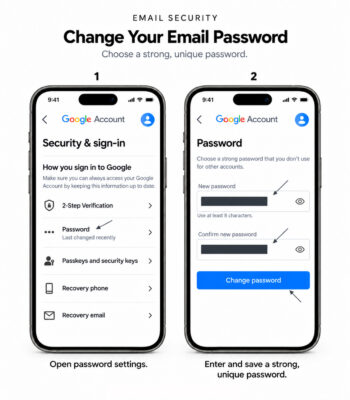
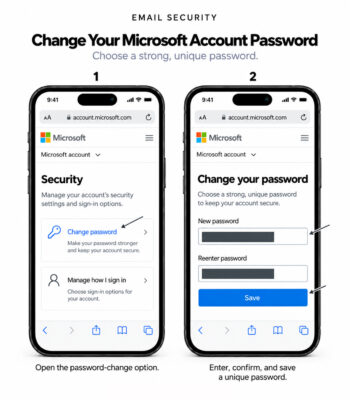
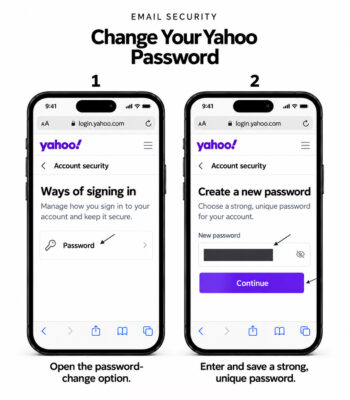
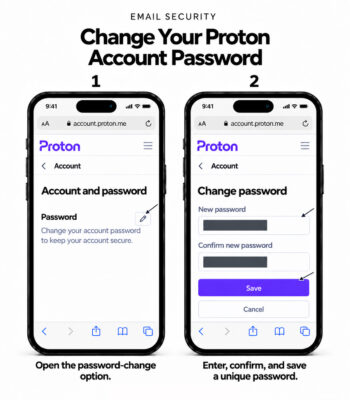
After selecting the pencil icon, enter your current password and select Authenticate before setting your new password.
5. Strengthen Sign-In Protection
Enable two-factor authentication, or configure a supported passkey sign-in method.
Where available, consider a passkey or hardware security key. Google explains that passkeys protect against phishing because they are tied to the legitimate website or application.
Create passkeys only on devices or credential services you control. Review and remove passkeys you do not recognize.
If you use an authenticator app, keep access to that app protected and store any backup or recovery codes securely.
Provider instructions:
Gmail
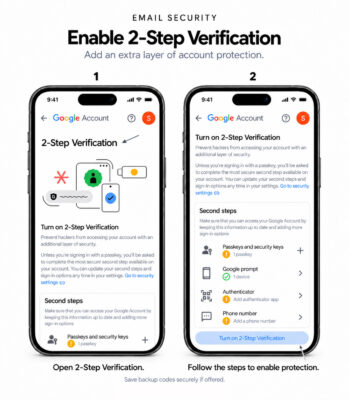
Open Google Account → Security & sign-in and review 2-Step Verification and Passkeys and security keys. Follow the options available for your account.
Outlook
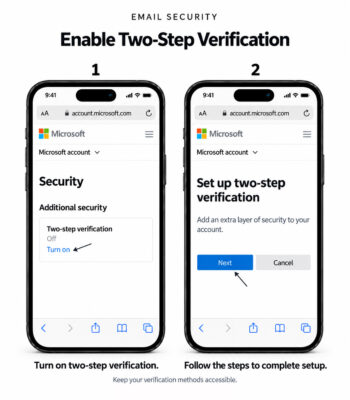
Open your Microsoft Account’s security settings and find Two-step verification. Complete setup and maintain alternative verification methods so that losing one device does not leave you without access.
Yahoo Mail
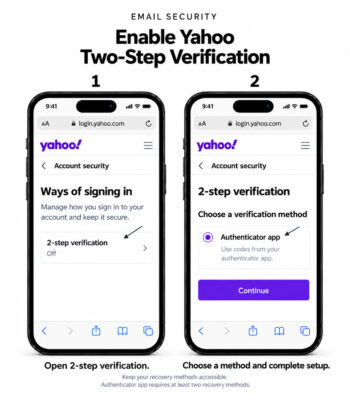
Open Yahoo Account Security. Under Ways of signing in, select 2-step verification and choose an available method. Yahoo’s instructions include authenticator-app verification.
Proton Mail
Open Settings → All settings → Account and password. Under Two-factor authentication, enable the authenticator app option, complete verification, and securely save the recovery codes. Proton also supports security-key authentication.
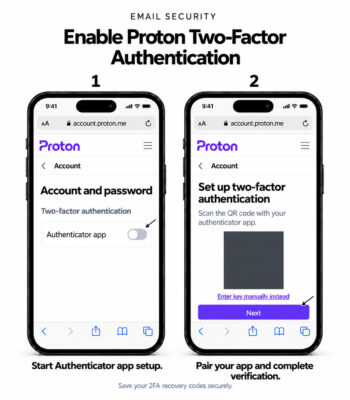
For other providers, including Mail.com, use the current official help instructions and the security options displayed in your account. Menu names and available methods can differ.
6. Store Backup and Recovery Credentials Safely
Where your provider offers backup codes, a recovery code, or a recovery phrase, store them somewhere you can access if the email account becomes unavailable.
Suitable options include a protected password manager or a securely stored offline copy.
Do not keep your only copy inside the inbox it is intended to recover.
Never share passwords, authenticator setup keys, QR codes, backup codes, or recovery phrases with another person.
Proton Mail requires an additional recovery check.
Recovering access to a Proton Account and recovering previously encrypted messages are separate functions. An email or SMS password reset may restore account access without restoring access to older encrypted data.
Configure a supported data-recovery method in advance. Proton’s recovery phrase can support both password recovery and encrypted-data recovery. Its 2FA recovery codes serve a different purpose.
7. Remove Unrecognized Sessions and Application Access
Review the devices and sessions connected to your account.
Sign out sessions you do not recognize or no longer need. If several sessions appear under one device, inspect them individually where the provider allows it.
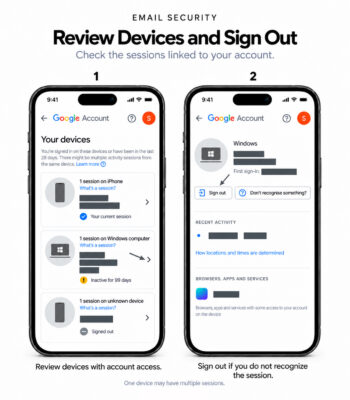
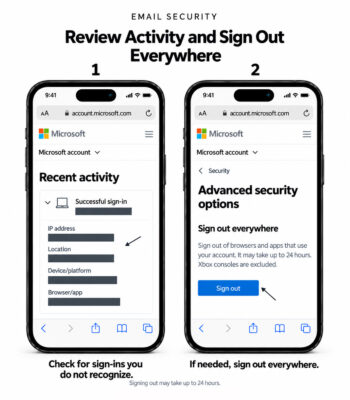
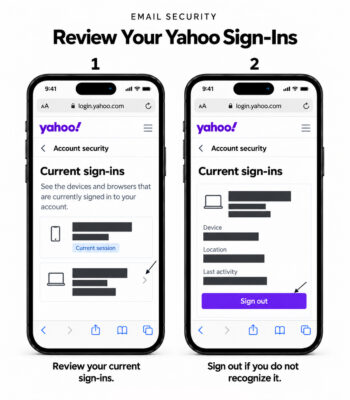
Also review:
- Third-party application permissions.
- App-specific passwords.
- Email clients you no longer use.
- Previously authorized integrations.
- Unrecognized authentication devices.
Remove access that is unfamiliar or unnecessary.
Google’s compromised-account guidance includes reviewing devices and third-party access. Yahoo specifically advises revoking unrecognized app passwords, including after a security-related password change.
8. Check Forwarding, Filters, Rules, and Delegation
An attacker may change mailbox settings to receive copies of messages or hide security notifications.
Review automatic forwarding, inbox rules, filters, and delegated mailbox access where available.
For Gmail, open the browser version of Gmail and select Settings → See all settings. Review:
- Forwarding and POP/IMAP for unfamiliar forwarding or mail-access settings.
- Filters and Blocked Addresses for rules you did not create.
- Accounts and Import, where available, for delegated access and unfamiliar account settings.
Google’s compromised-account checklist includes reviewing Gmail forwarding, filters, and delegation.
For Outlook on the web, inspect the mail settings for Forwarding and Rules. Remove unfamiliar destinations and rules that redirect, delete, or hide messages. Microsoft documents both automatic forwarding and forwarding through inbox rules.
For other providers, inspect the equivalent mailbox settings. Available features can vary by account type and subscription.
9. Confirm That Your Security Setup Works
After making changes, confirm that you can sign in using your updated credentials and complete the required verification.
For routine maintenance, keep a trusted session available while checking the new setup. Do not unnecessarily close your last working session before confirming your sign-in methods.
Check that:
- Your current password works.
- Your passkey or second verification step works.
- Your recovery information is correct.
- Your backup credentials are accessible.
- You can send and receive email.
- Unfamiliar forwarding and access settings have been removed.
If a provider displays a security delay or pending change, follow that notice. Do not repeatedly restart the process simply because the change is not immediate.
10. Review Accounts Connected to the Email
If your email account was compromised, review the social media and other accounts that depend on it.
Check their recovery information, recent activity, active sessions, and authentication settings. A password-reset message received during the incident may indicate that another account was targeted.
For platform-specific instructions, see Sebuda’s guides:
- How to Secure an Instagram Account
- How to Secure a YouTube Channel
- How to Secure a TikTok Account
- How to Secure an X Account
- Telegram channels
Avoid Phishing and Fake Security Requests
Treat unexpected messages requesting passwords, authentication codes, or recovery credentials with caution.
Open your provider’s official website directly to inspect a security alert instead of signing in through an unexpected email link.
Do not approve an authentication prompt you did not initiate.
Microsoft states that it will not ask for your password by email. Proton also warns users against sharing passwords, 2FA codes, or recovery phrases with people claiming to represent its support team.
Email Encryption and Account Security
Email encryption and account access protection serve different purposes.
Encryption can help protect message content, but it does not replace a strong sign-in method, controlled recovery information, or a review of mailbox access.
Gmail’s Confidential Mode can restrict certain recipient actions and set access limits. Recipients can still take screenshots or photographs, so it should not be treated as a guarantee that a message cannot be copied.
Google Vault is a data-retention and eDiscovery service for organizations. It is not a tool for encrypting a personal Gmail inbox.
Final Email Security Checklist
Before considering your email security review complete, confirm that:
- Your password is unique and securely stored.
- Your sign-in protection is configured.
- Your recovery methods belong to you.
- Your backup or recovery credentials are stored safely.
- Unrecognized sessions have been signed out.
- Unnecessary application access and app passwords have been removed.
- Forwarding, filters, rules, and delegation have been reviewed.
- You have checked any provider-imposed security delays.
- Accounts dependent on the email have been reviewed when necessary.
If an account remains recoverable through information controlled by another person, do not assume that changing its password has established exclusive control.
Interface Notice
Menu names and available security features may vary by device, region, account type, subscription, and future updates.
Work or school email accounts may require assistance from an administrator. Follow your provider’s current official instructions if the options shown differ from this guide.