Remember, securing your X account is only part of the job.You should also make sure your email is protected. Check out the article “How to Secure Your Email?” for practical tips.
Knowing how to secure your X account after purchase is essential for protecting access and reducing unnecessary security problems during the transfer process. Instead of changing multiple security details, profile information, or account settings immediately after logging in from a new device, Buyers should follow a controlled and gradual security procedure.
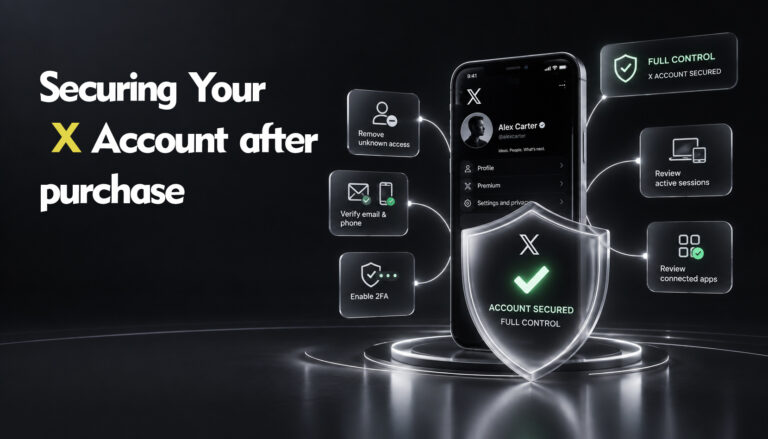
This guide explains how to secure your X account after purchase through Sebuda, including account inspection, the recommended 48-hour stabilization period, contact-information transfer, password security, Two-Factor Authentication, active sessions, connected applications, and gradual profile changes.
The correct procedure depends on whether the Seller can successfully add the Buyer’s email address and phone number from the Seller’s existing or recognized device or session.
The visual guides for the tutorials are provided at the end of the article.
Before You Secure Your X Account After Purchase
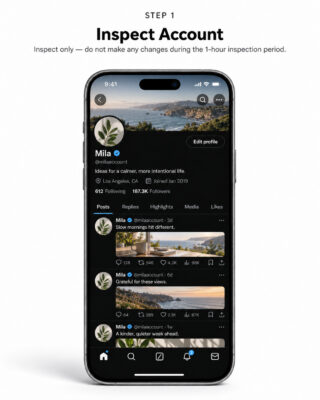
Important — One-Hour Inspection Period
After the Seller delivers the account, the Buyer will have one (1) hour to inspect the account and decide whether to proceed with the purchase.
During this inspection period, the Buyer is not permitted to make any changes to the account.
This includes, but is not limited to:
- changing the password;
- changing or adding an email address;
- changing or adding a phone number;
- enabling, disabling, or modifying Two-Factor Authentication (2FA);
- changing the username or display name;
- changing the profile photo, header image, or biography;
- publishing, deleting, or editing posts;
- changing security or privacy settings;
- removing devices or active sessions;
- connecting or removing third-party applications; or
- making any other modification to the account.
The one-hour inspection period is intended only to allow the Buyer to confirm that the account matches the listing and functions as described.
If the Buyer decides not to proceed with the purchase, the Buyer must notify the Sebuda Admin Team through the website transaction chat before making any changes to the account.
Completing the inspection without modifying the account is the first stage before you secure your X account after purchase.
Important: The First 48 Hours
Based on Sebuda’s operational experience, X accounts may be particularly sensitive to security changes when they are accessed from a new or unfamiliar device.
In some situations, X may request additional verification or temporarily restrict certain account or security actions after detecting a login from a new device, browser, location, or network environment.
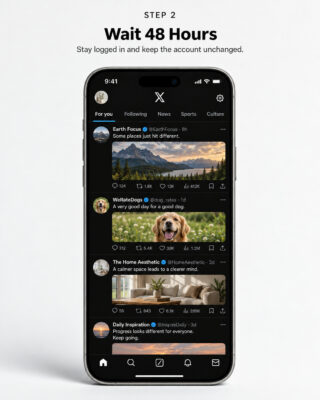
For this reason, during the first 48 hours after the Buyer’s initial login, the Buyer should primarily remain logged into the account and allow the new device or session to stabilize.
During this period, the Buyer should not personally make security, profile, or content changes, including:
- changing the password;
- changing the email address;
- changing the phone number;
- enabling or disabling Two-Factor Authentication;
- changing the username;
- changing the display name;
- changing the profile photo or header image;
- editing the biography;
- deleting or publishing posts;
- mass deleting content;
- mass following or unfollowing users;
- removing active sessions;
- revoking connected applications; or
- making multiple account-setting changes in a short period.
The objective during this period is simple:
Stay logged in, confirm that access remains stable, and avoid unnecessary activity.
Important
The 48-hour stabilization period is an operational recommendation developed by Sebuda based on its experience with account transfers.
It is not represented as a guaranteed or officially published waiting period imposed by X, and it does not guarantee that X will not request additional verification or apply security restrictions.
Keeping the account stable during this stage helps create a more controlled process when you later secure your X account after purchase.
How to Secure Your X Account After Purchase
Once the Buyer has accepted the account and the one-hour inspection period has ended, the Buyer and Seller should follow one of the two procedures below.
The correct procedure depends primarily on whether the Seller can add the Buyer’s email address and phone number from the Seller’s existing or recognized device or session.
The two procedures should not be mixed unnecessarily.
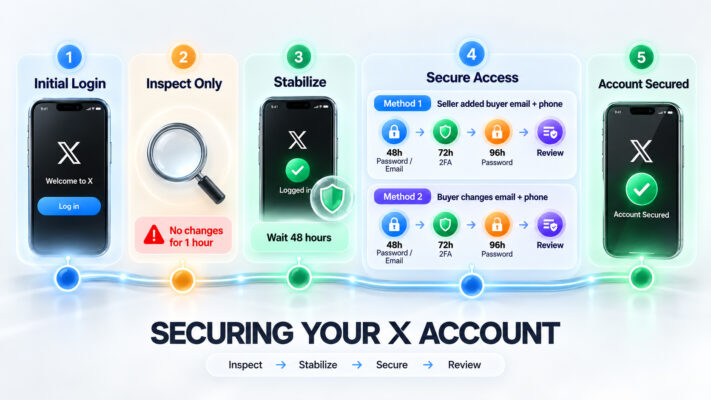
Method One: Seller-Assisted Email and Phone Change
Recommended When the Seller Can Add the Buyer’s Information
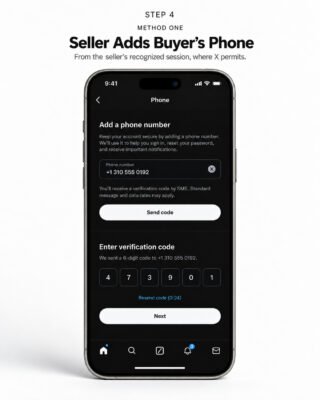
Under Method One, the Seller adds the Buyer’s email address and phone number to the X account from the Seller’s existing or recognized session.
The Buyer does not personally make these security changes during the initial stabilization period.
This is the preferred procedure where X allows the Seller to update the contact information successfully.
Using the Seller’s recognized session where possible provides a controlled way to begin to secure your X account after purchase without requiring the Buyer to make immediate security changes.
Step 1: Buyer and Seller Should Be Online Together
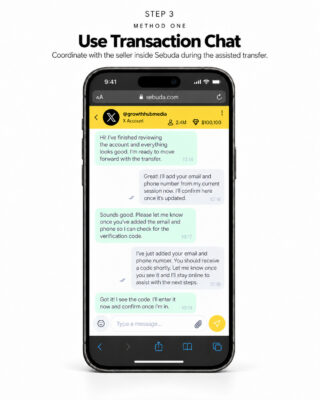
The Buyer and Seller should remain online at the same time during the initial transfer process.
This allows:
- verification codes to be exchanged without unnecessary delays;
- email and phone-number changes to be confirmed;
- security warnings to be identified immediately;
- unexpected restrictions to be reported;
- login problems to be resolved more efficiently; and
- the transfer process to be documented.
All important communication relating to the transfer should take place through the Sebuda website transaction chat.
This provides a clear transaction record if assistance is required.
Step 2: Buyer Provides Their Phone Number
The Buyer should provide a personal phone number that they control.
Where X permits the change, the Seller should add or replace the phone number connected to the X account with the Buyer’s phone number.
X may require verification of the new number. Its current Help Center explains that phone-number updates can involve password confirmation and an SMS verification code.
The Buyer should provide the required verification code to the Seller through the Sebuda transaction chat so that the Seller can complete the transfer.
After the phone number has been added, the Buyer should confirm that verification was completed successfully.
Do not repeatedly request verification codes if X displays an error or restriction. If the change cannot be completed, stop attempting the change and proceed to Method Two where appropriate.
Official X guide: Updating an account phone number
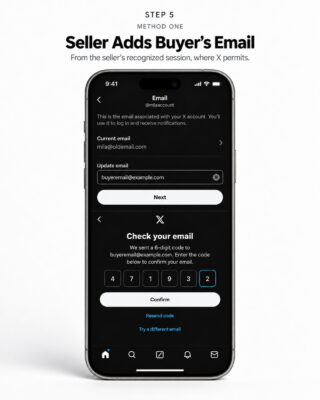
Step 3: Buyer Provides Their Email Address
The Buyer should provide an email address that:
- belongs exclusively to the Buyer;
- is fully accessible by the Buyer;
- is protected with a strong password;
- preferably has Two-Factor Authentication enabled; and
- can be successfully associated with the X account.
The email account itself is an important part of X account security because it may be used for security notifications, verification, and account recovery.
Where X permits the change, the Seller should update the email address associated with the X account from the Seller’s recognized session.
X may send a verification code or confirmation message to the Buyer’s email address.
The Buyer should complete or provide the required verification.
Step 4: Confirm the New Contact Information
After the Seller completes the changes, the Buyer should confirm that:
- the Buyer’s email address has been successfully verified;
- the Buyer’s phone number has been successfully verified, where applicable;
- the X account remains accessible;
- no unexpected account restriction has appeared; and
- the account continues to function normally.
The Buyer should not begin changing additional settings simply because the email and phone number were successfully updated.
Step 5: Complete the 48-Hour Stabilization Period
Even if the Seller successfully adds the Buyer’s email address and phone number, the Buyer should continue following the remainder of the 48-hour stabilization recommendation.
During this period:
- remain logged into the account;
- use the same primary device where practical;
- avoid repeatedly logging in and out;
- avoid switching between many devices;
- avoid unnecessary VPN or proxy changes;
- avoid profile changes;
- avoid content changes;
- avoid mass account activity; and
- avoid additional security modifications.
Normal viewing of the account is generally sufficient.
The objective is to allow the Buyer’s login environment to remain stable before completing the security handover.
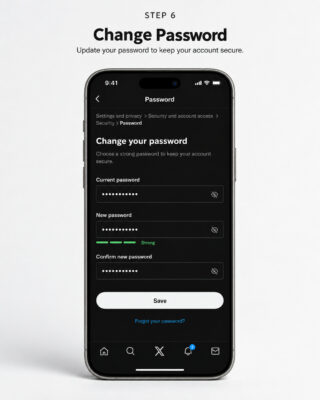
Step 6: Change the Password After the Stabilization Period
After at least 48 hours have passed from the Buyer’s initial login, and provided that the account is functioning normally, the Buyer may proceed with the next security step.
Creating a new password is one of the most important steps when you secure your X account after purchase.
The Buyer should create a new, strong, and unique password.
The password should:
- be used only for this X account;
- be difficult to guess;
- not contain obvious personal information;
- not reuse the Seller’s previous password; and
- not be reused on another website or service.
A password manager may be used to generate and securely store a unique password.
After changing the password, confirm that the account remains accessible before proceeding.
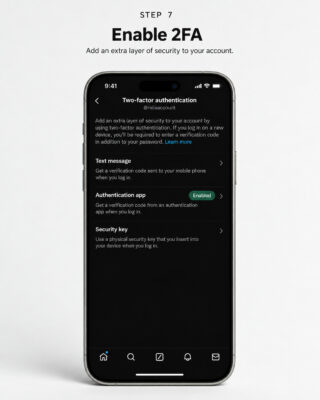
Step 7: Configure Two-Factor Authentication
Once the new password is working correctly, the Buyer should secure the account with Two-Factor Authentication (2FA).
Two-Factor Authentication provides another important protection layer when you secure your X account after purchase.
X currently lists three 2FA methods:
- Text message;
- Authentication app; and
- Security key.
Navigate to:
Settings and privacy → Security and account access → Security → Two-factor authentication
Then select an available method and follow X’s on-screen instructions.
If the account already has Two-Factor Authentication controlled by the Seller, the Buyer and Seller should coordinate the transition carefully.
The existing authentication method should not be removed prematurely if doing so could make the account inaccessible.
The objective is to transition from a Seller-controlled authentication method to a Buyer-controlled authentication method without creating an access gap.
Official X guide: Two-Factor Authentication
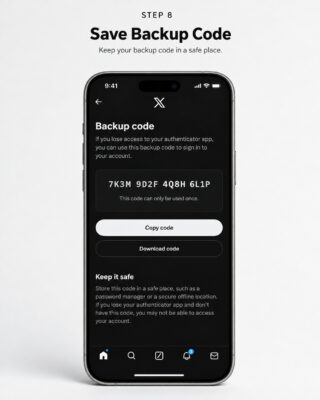
Step 8: Save Your Backup Code
When Two-Factor Authentication is configured, X may provide a backup or recovery code.
The Buyer should store this code securely.
Do not:
- publish the backup code;
- save it in a public document;
- send it through social media;
- share it with unrelated third parties; or
- leave it somewhere that can easily be accessed by another person.
A backup code may become important if the Buyer loses access to their authentication device or phone.
Treat recovery codes with the same level of care as the account password.
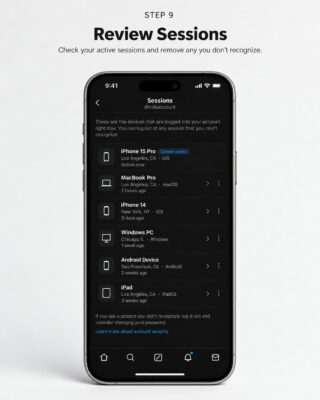
Step 9: Review Active Sessions
Once the password and 2FA configuration have been completed successfully, review the account’s active sessions.
Navigate to:
Settings and privacy → Security and account access → Apps and sessions → Sessions
X currently allows users to review active login sessions and log out individual sessions or all other sessions.
Remove unfamiliar or unnecessary sessions only after the Buyer’s primary login, new password, and authentication method have been confirmed to work properly.
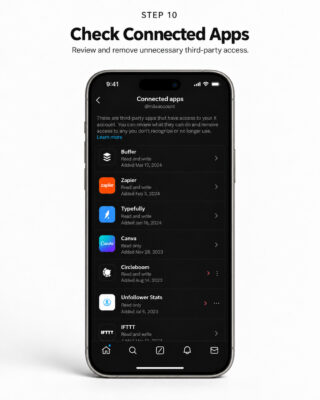
Step 10: Review Connected Applications
Next, review third-party applications that have access to the X account.
Navigate to:
Settings and privacy → Security and account access → Apps and sessions → Connected apps
Review every application carefully.
Revoke access for applications that:
- are no longer required;
- are unfamiliar;
- were connected by the previous owner but are no longer needed;
- have unnecessary permissions; or
- cannot be identified.
X notes that third-party applications may, depending on their permissions, be able to read posts, see followed accounts, update profile information, publish posts, access Direct Messages, or access account information. X also allows users to revoke application access from the Apps and sessions section.
Only trusted and necessary applications should remain connected.
Official X guide: Third-party apps and login sessions
The password, 2FA, sessions, and connected-app review complete the main security sequence in Method One.
Method Two: Secure Your X Account After Purchase After 48 Hours
Recommended When the Seller Cannot Add the Buyer’s Email or Phone Number
Method Two should be used when X does not allow the Seller to change the email address or phone number successfully from the Seller’s existing session.
In this situation, the Buyer should not repeatedly attempt security changes during the first 48 hours.
Instead, the Buyer should remain logged in and wait until the initial stabilization period has passed before completing the security changes personally.
Step 1: Buyer and Seller Remain Available
The Buyer and Seller should remain reachable through the Sebuda transaction chat.
This is especially important if:
- X requests a verification code;
- the existing email address belongs to the Seller;
- the existing phone number belongs to the Seller;
- Two-Factor Authentication is controlled by the Seller; or
- X sends a security confirmation to the previous contact information.
The Seller should continue cooperating until the agreed account handover procedure has been completed.
Step 2: Do Not Make Changes During the First 48 Hours
During the first 48 hours after the Buyer’s initial login, the Buyer should avoid changing the account.
This includes security, profile, and content changes.
The Buyer should simply confirm that:
- the account remains accessible;
- the session remains active;
- the account has not developed unexpected restrictions; and
- normal access continues to work.
If X displays an unexpected security warning or temporarily prevents an action, do not repeatedly attempt the same change.
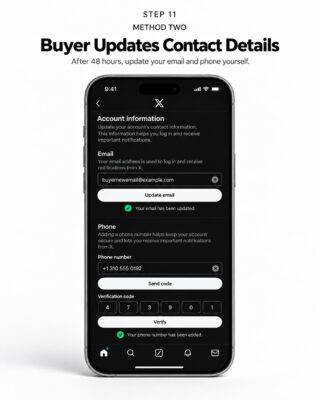
Step 3: Update the Email Address
After the 48-hour stabilization period has ended, the Buyer should begin by connecting an email address that the Buyer fully controls.
Use a secure email account with:
- a strong, unique password; and
- Two-Factor Authentication enabled wherever possible.
Follow X’s instructions to change and verify the email address.
The Seller may need to remain available if X sends a notification or verification request involving the previous email address.
Do not proceed until the new Buyer-controlled email address has been successfully added and verified.
Step 4: Update the Phone Number
After confirming the email address, the Buyer may update the account’s phone number where appropriate.
Use a phone number that:
- belongs to the Buyer;
- can receive verification codes;
- will remain available long-term; and
- is not temporarily borrowed from another person.
Complete any verification requested by X.
Once the new phone number has been confirmed, verify that it appears correctly in the account settings.
Step 5: Change the Password
Once the Buyer controls the recovery email and, where applicable, phone number, create a strong and unique password.
Do not reuse the Seller’s password or a password used on another service.
After saving the new password, verify that the Buyer’s own login remains functional before continuing.
Step 6: Transfer or Configure Two-Factor Authentication
Next, configure Two-Factor Authentication under the Buyer’s control.
If the Seller previously controlled the existing 2FA method, coordinate its replacement carefully.
After configuring 2FA:
- confirm that it is active;
- securely save the backup code;
- verify that the authentication method belongs to the Buyer; and
- ensure that the Buyer understands how to regain access if the primary authentication device becomes unavailable.
Do not remove a functioning previous authentication method until the Buyer-controlled replacement has been confirmed to work where the X interface permits a safe transition.
Step 7: Review and Remove Unnecessary Sessions
Once the Buyer controls:
- the email address;
- the phone number where applicable;
- the password; and
- Two-Factor Authentication,
review the list of active sessions.
Remove unfamiliar or unnecessary sessions.
If appropriate, use X’s option to log out other sessions.
Then confirm that the Buyer’s own primary device remains logged in correctly.
Step 8: Review Connected Applications
After session security has been completed, inspect connected applications.
Remove third-party applications that are unknown, unnecessary, or associated only with the previous owner’s workflow.
Do not automatically remove an application unless you understand its function, particularly if the account relies on legitimate publishing, analytics, or business tools.
Method Two therefore provides an alternative way to secure your X account after purchase when Seller-assisted contact-information changes cannot be completed.
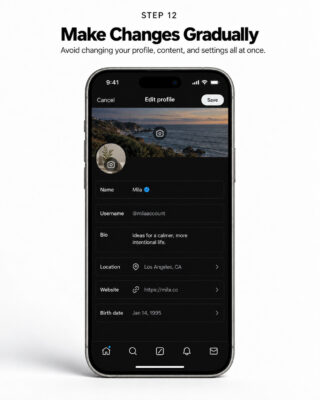
After Security Changes: Make Further Changes Gradually
Completing the security transfer does not mean that the Buyer should immediately redesign or restructure the entire account.
Once you secure your X account after purchase, profile and content changes should still be introduced gradually.
Avoid making numerous major changes within a short period, including:
- changing the username;
- changing the display name;
- replacing the profile photo;
- replacing the header image;
- rewriting the biography;
- changing the website link;
- deleting large numbers of posts;
- publishing an unusually large amount of content;
- mass following users;
- mass unfollowing users;
- repeatedly changing security settings; or
- frequently switching devices or locations.
Gradual changes make the transition more controlled and reduce unnecessary account disruption.
Recommended Order for Profile Changes
Once account security has been fully transferred and the account is operating normally, profile changes may be introduced gradually.
First Stage: Complete Essential Security Changes
Focus on:
- email;
- phone number;
- password;
- Two-Factor Authentication;
- active sessions; and
- connected applications.
Second Stage: Allow the Account to Operate Normally
Avoid unnecessary account-wide modifications immediately after the security transfer.
Allow the account to continue operating normally before making further major changes.
Third Stage: Introduce Profile Changes Gradually
For example:
- update the biography or website link;
- allow some time before another major profile change;
- update the profile image or header where necessary;
- change the display name if required; and
- consider username changes separately and cautiously.
There is no universal waiting period that guarantees a profile change will not trigger an X security check. Buyers should therefore avoid clusters of major changes.
Avoid Mass Content Deletion
Buyers should be especially careful when managing existing posts.
Deleting hundreds or thousands of posts immediately after purchasing an account may:
- radically change normal account behavior;
- remove valuable historical content;
- affect engagement history;
- disrupt the account’s existing audience; and
- make the account transition unnecessarily abrupt.
If old content needs to be removed, review it first and make changes gradually where practical.
Avoid Sudden Following or Unfollowing Activity
The same principle applies to following activity.
Do not immediately:
- unfollow a large percentage of accounts;
- follow hundreds of new accounts;
- perform repetitive follow/unfollow actions; or
- use automated tools to rapidly change the account’s social graph.
Normal and gradual account activity is preferable after the transfer.
Be Careful With VPNs, Proxies, and Location Changes
If possible, avoid repeatedly changing the network environment during the initial security process.
For example, avoid repeatedly logging into the account through:
- multiple VPN locations;
- rotating proxies;
- many different IP addresses;
- several devices in different locations; or
- multiple browsers within a short period.
A Buyer who normally uses a VPN should prioritize consistency rather than constantly switching locations.
No particular network configuration guarantees that X will or will not request additional security verification.
Secure the Connected Email Account
The X account is only as secure as the email account associated with it.
At minimum:
- use a unique email password;
- enable Two-Factor Authentication on the email account;
- review the email account’s recovery information;
- review active email sessions;
- remove unknown devices;
- keep recovery codes secure; and
- do not share verification codes unnecessarily.
After the transfer is complete, the Buyer should never provide X or email verification codes to another person.
Never Share Your New Password
The Buyer should never provide the new X password to:
- the previous owner;
- third-party growth services;
- unofficial verification services;
- follower-selling services;
- unknown applications;
- individuals claiming they need the password to provide support; or
- anyone contacting the Buyer through untrusted channels.
X recommends using its authorization mechanisms for legitimate third-party applications rather than handing account credentials directly to an application or service.
Watch for Phishing Attempts
After taking control of an account, the Buyer may receive emails, messages, or links claiming that:
- the account has been suspended;
- verification is required immediately;
- the account will lose verification;
- copyright action has been filed;
- the account must confirm its identity;
- a security alert requires an immediate login; or
- account credentials must be entered on another website.
Do not enter the account password into an unfamiliar website.
Always verify that you are using the genuine X website or official X application before entering login information.
What to Do If X Blocks a Security Change
If X temporarily prevents a password, email, phone, or security change:
Do not repeatedly attempt the same action.
Instead:
- stop making additional security changes;
- remain logged into the account if possible;
- check whether X provides an on-screen explanation;
- avoid repeated verification-code requests;
- document the issue in the Sebuda transaction chat if the transfer is still in progress;
- keep the Seller available when the Seller’s email, phone, or 2FA may still be required; and
- follow X’s official account-access or recovery instructions where necessary.
Repeated unsuccessful attempts do not guarantee faster access and may complicate the situation.
What to Do If You Receive an Unexpected Login Alert
After the security transition has been completed, treat unexpected login notifications seriously.
If you notice activity that you do not recognize:
- confirm that your email and phone information have not changed;
- change your password if necessary;
- review active sessions;
- terminate unfamiliar sessions;
- review connected applications;
- revoke suspicious application access;
- verify your Two-Factor Authentication configuration; and
- secure the connected email account.
If access to the account has already been lost, use X’s official account-recovery procedures.
Final Checklist to Secure Your X Account After Purchase
Before considering the account security transfer complete, confirm that:
- The one-hour Sebuda inspection period has ended.
- The account was accepted through the transaction process.
- The recommended 48-hour stabilization period has been completed.
- The Buyer controls the email address associated with the account.
- The Buyer controls the phone number associated with the account, where applicable.
- The Buyer has created a new and unique password.
- Two-Factor Authentication is controlled by the Buyer.
- Backup or recovery codes have been stored securely.
- Unnecessary active sessions have been removed.
- Connected applications have been reviewed.
- Unknown or unnecessary third-party access has been revoked.
- The connected email account is secured.
- The Buyer has tested normal account access.
- No unnecessary profile or content changes were made during the initial transfer.
- Future profile and content changes will be introduced gradually.
Recommended Security Sequence at a Glance
Method One — Seller Can Update the Contact Information
Account Delivered → One-Hour Inspection → Buyer Accepts Account → Seller Adds Buyer’s Phone and Email From Recognized Session → Buyer Completes 48-Hour Stabilization Period → Buyer Changes Password → Buyer Configures 2FA → Buyer Saves Backup Code → Buyer Reviews Sessions → Buyer Reviews Connected Apps → Gradual Profile Changes
Method Two — Seller Cannot Update the Contact Information
Account Delivered → One-Hour Inspection → Buyer Accepts Account → Buyer Makes No Changes During First 48 Hours → Buyer Updates Email → Buyer Updates Phone → Buyer Changes Password → Buyer Configures 2FA → Buyer Saves Backup Code → Buyer Reviews Sessions → Buyer Reviews Connected Apps → Gradual Profile Changes
Final Note
Account security procedures may vary because X can request additional verification depending on the account, device, login environment, security history, and other factors.
Sebuda cannot guarantee that following a particular sequence or waiting period will prevent X from requesting verification, temporarily limiting an action, or applying an account-security measure.
The purpose of this guide is to help Buyers secure your X account after purchase through a controlled and conservative account-transfer procedure based on Sebuda’s operational experience.
The one-hour inspection period is part of Sebuda’s transaction procedure.
The 48-hour stabilization period described in this guide is a Sebuda operational recommendation and should not be interpreted as an official X rule, guarantee, or mandatory waiting period published by X.
Where X displays a security message, restriction, or verification requirement, users should follow the instructions provided directly by X and avoid repeated or unnecessary security changes.
These menus are shown on the iOS operating system. Please note that the menu options and their layout may vary depending on the operating system, device model, or software version.