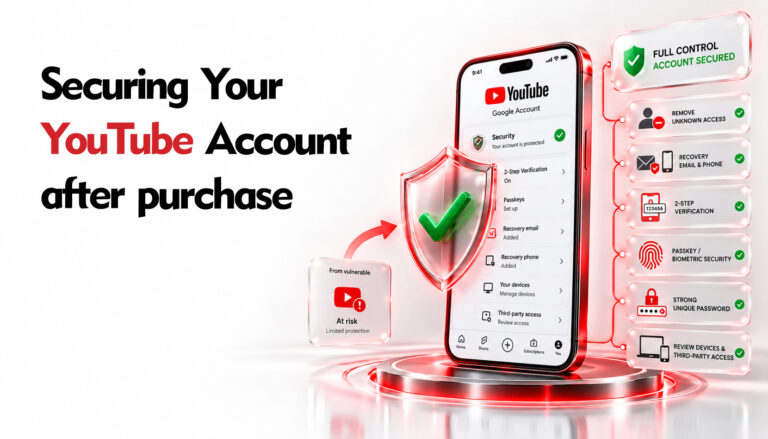
YouTube Channel Transfer: How to Secure a Purchased Channel
A YouTube channel transfer should be completed through Google’s ownership system rather than by exchanging Google Account passwords. When a purchased YouTube channel is connected to a Google Brand Account, the Buyer can receive ownership through their own Google Account while the Seller keeps their personal login credentials private.
Completing the YouTube channel transfer correctly is essential for protecting long-term access to the channel, its content, and its existing audience.
Before starting the transfer, the Buyer should also make sure that the Google Account used to receive the channel is properly protected. For additional security guidance, see Sebuda’s How to Secure Your Email article.
Important: A YouTube channel connected to a Google Brand Account should not normally be transferred by providing the Seller’s Google Account password to the Buyer. Ownership should instead be transferred directly to the Buyer’s own Google Account.
Important: The Buyer must use a Google Account that belongs exclusively to the Buyer and that the Buyer can access securely. The Buyer must never provide their password, Two-Step Verification codes, Backup Codes, Passkeys, or other Google security credentials to the Seller.
Important: Access to YouTube Studio does not by itself confirm that the YouTube channel transfer has been completed. The Buyer’s Google Account should ultimately appear as the Primary Owner of the Brand Account.
Step-by-step visual guides corresponding to these instructions are provided at the end of this article.
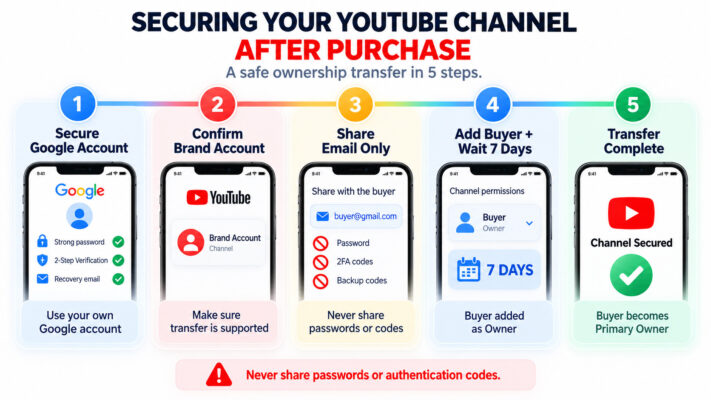
Recommended YouTube Channel Transfer Procedure
Sebuda recommends completing the YouTube channel transfer through the Google Brand Account ownership system whenever the channel supports this method.
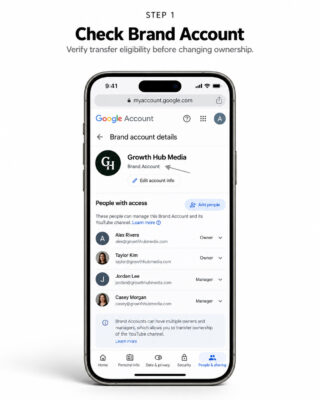
1. Confirm That the YouTube Channel Can Be Transferred
Before beginning the transfer, the Seller should confirm that the YouTube channel is connected to a Google Brand Account and supports ownership transfer.
A YouTube channel connected to a Brand Account can be managed by multiple users through their own Google Accounts. This allows ownership to be transferred without sharing the Seller’s personal Google Account credentials.
For Google’s official explanation of Brand Account ownership and channel transfers, see YouTube’s Brand Account ownership documentation.
The Seller should confirm that:
- The correct YouTube channel is connected to the Brand Account.
- The Seller currently has the required ownership permissions.
- Brand Account ownership settings are accessible.
- The Buyer can be added as an Owner.
- The channel is ready for the ownership transfer process.
If the channel is not configured in a way that supports ownership transfer, the Seller should resolve the issue before proceeding.
Channel Permissions
If the channel currently uses YouTube Studio Channel Permissions, the Seller may need to temporarily opt out of Channel Permissions before Primary Ownership can be transferred through the Brand Account.
Google treats Channel Permissions and Brand Account ownership as separate permission systems.
Important: If the Primary Owner option is unavailable later in the transfer process, the Seller should check whether YouTube Studio Channel Permissions are still enabled.
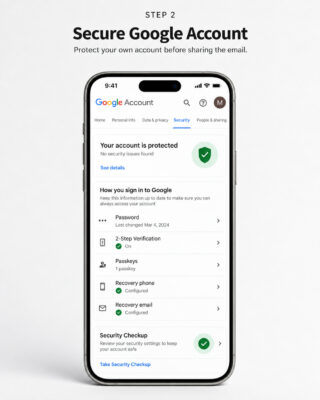
2. Secure the Buyer’s Google Account
The Buyer should use their own Google Account to receive ownership of the YouTube channel.
Before providing the Google Account email address to the Seller, the Buyer should make sure that the account is properly secured.
The Buyer should:
- Use a strong and unique password.
- Enable Two-Step Verification (2FA).
- Configure a recovery phone number belonging to the Buyer.
- Configure a recovery email address belonging to the Buyer.
- Enable a Passkey, where available.
- Review active devices and remove unknown sessions.
- Generate and securely store Backup Codes, where applicable.
- Complete Google’s Security Checkup.
For additional account-security checks, the Buyer may use Google’s official Security Checkup.
Recommendation: For high-value YouTube channels, Sebuda recommends using a Google Account that is fully controlled by the Buyer and protected with Two-Step Verification.
The Buyer should never provide the password or authentication codes for this Google Account to the Seller.
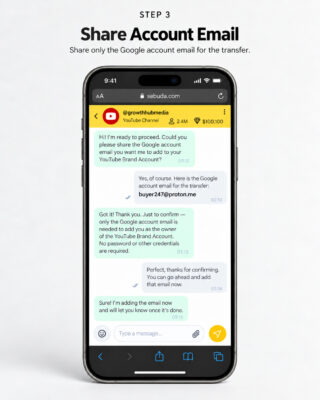
3. Provide the Buyer’s Google Account Email Address
The Buyer should provide the Seller with the email address of the Google Account they want to use for the YouTube channel transfer.
Only the Google Account email address is required.
The Seller does not need:
- The Buyer’s Google Account password.
- Two-Step Verification codes.
- Backup Codes.
- Passkeys.
- Recovery phone access.
- Recovery email access.
- Access to the Buyer’s inbox.
The Google Account should remain under the exclusive control of the Buyer throughout the entire transaction.
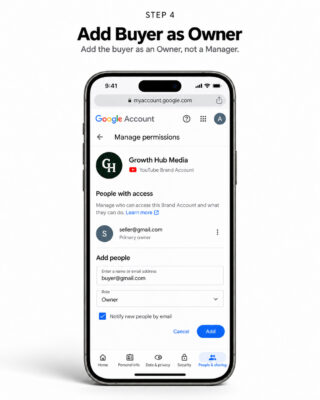
4. Add the Buyer as an Owner
The Seller should add the Buyer’s Google Account to the channel’s Brand Account as an Owner.
Sebuda recommends selecting the Owner role rather than the Manager role because the purpose of the process is to transfer full ownership of the channel.
The Seller should:
- Open the Google Brand Account associated with the YouTube channel.
- Open Manage permissions.
- Select the option to add or invite another user.
- Enter the Buyer’s Google Account email address.
- Select Owner as the role.
- Send the invitation.
Important: The Buyer should be added as an Owner, not merely given access through YouTube Studio.
The Owner role is required because the Buyer must later become the Primary Owner of the Brand Account.
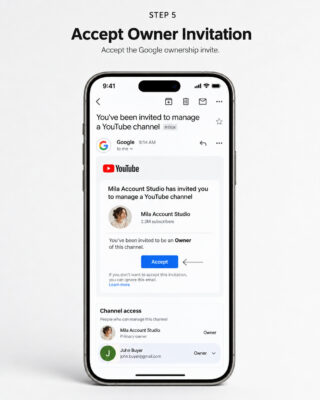
5. Accept the Owner Invitation
After the Seller sends the invitation, the Buyer should check the email account associated with their Google Account.
The Buyer should:
- Open the invitation sent by Google.
- Confirm that the invitation relates to the correct YouTube channel or Brand Account.
- Confirm that the offered role is Owner.
- Accept the invitation.
- Verify that their Google Account appears in the Brand Account’s list of users.
The Buyer should accept the invitation promptly because the required ownership waiting period begins only after the invitation has been accepted and the Buyer has become an Owner.
Important: Delaying acceptance may also delay the date on which Primary Ownership can be transferred.
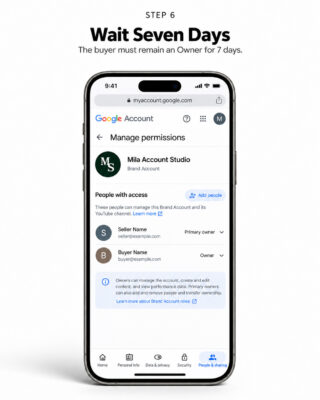
6. Wait Seven Days
The Buyer must remain an Owner of the Brand Account for at least seven (7) days before they can become Primary Owner.
During this period:
- The Seller remains the Primary Owner.
- The Buyer remains an Owner.
- The Buyer accesses the channel through their own Google Account.
- Sebuda continues to hold the transaction funds in escrow.
- The Buyer should confirm that the correct channel remains accessible through their Google Account.
- Neither party should interfere with the ownership transfer process.
Google requires the relevant ownership role to be held for the required period before Primary Ownership can be transferred.
For official guidance, see Google’s Brand Account ownership information.
Important: The seven-day period should be counted from the time the Buyer successfully accepts the ownership invitation and becomes an Owner.
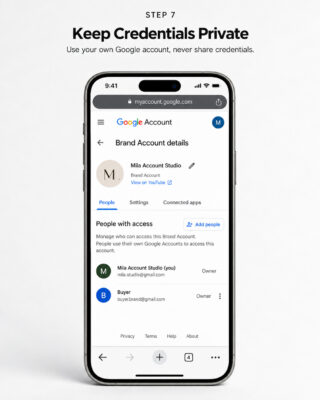
7. Keep Google Account Credentials Private
The YouTube channel transfer does not require either party to share their Google Account login credentials.
The Seller should not provide the Buyer with:
- The Seller’s Google Account password.
- Two-Step Verification codes.
- Backup Codes.
- Passkeys.
- Recovery phone access.
- Recovery email access.
- Other Google security credentials.
Likewise, the Buyer should never provide their own Google Account credentials to the Seller.
Each party should access the channel or Brand Account through their own Google Account.
This is one of the main security advantages of using Google’s ownership-transfer system instead of transferring an entire Google Account.
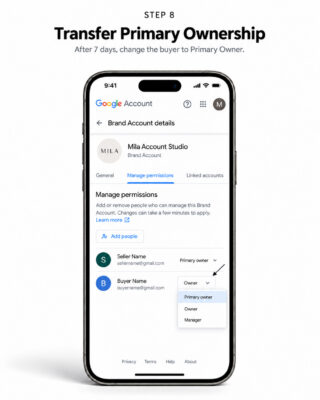
8. Transfer Primary Ownership
After the required seven-day period has passed, the Seller should transfer the Primary Owner role to the Buyer.
The Seller should:
- Open the Google Brand Account associated with the channel.
- Open Manage permissions.
- Locate the Buyer’s Google Account.
- Open the role selector next to the Buyer’s account.
- Select Primary Owner.
- Confirm the transfer.
For Google’s current instructions, see the official YouTube channel ownership transfer guide.
If the Primary Owner option does not appear, the Seller should review the channel’s permission configuration and confirm that Channel Permissions are not blocking the ownership transfer.
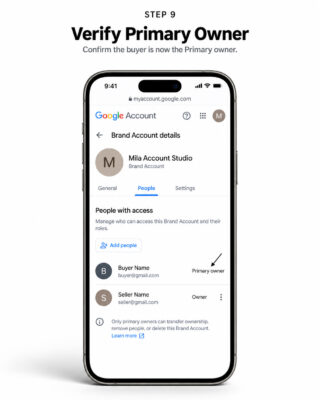
9. Verify Primary Ownership
After the Seller completes the ownership change, the Buyer should independently verify that the transfer was successful.
The Buyer should open the Brand Account’s Manage permissions section and confirm that:
- The Buyer’s Google Account is displayed as Primary Owner.
- The Seller is no longer displayed as the Primary Owner.
- The correct Brand Account is associated with the purchased YouTube channel.
- The Buyer can access the channel through their own Google Account.
Important: Being able to access YouTube Studio does not by itself confirm ownership. The Buyer should specifically verify that their Google Account is listed as the Primary Owner.
The YouTube channel transfer should not proceed to its final stage until Primary Ownership has been verified.
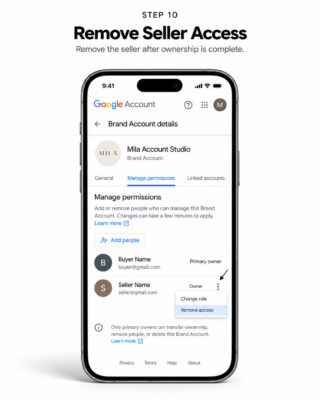
10. Remove the Seller’s Access
After the Buyer has successfully become the Primary Owner, the Seller’s remaining Brand Account access should be removed unless Sebuda has specifically approved another arrangement.
The Buyer should review all users with access and confirm that:
- The Buyer is the Primary Owner.
- The Seller’s Google Account has been removed.
- No unknown Owners remain.
- No unknown Managers remain.
- Any additional authorized users are known and approved by the Buyer.
Once the Seller has been removed from the Brand Account, they should no longer retain access through their former ownership role.
Important: The Buyer should verify the Seller’s removal before considering the ownership transfer fully secured.
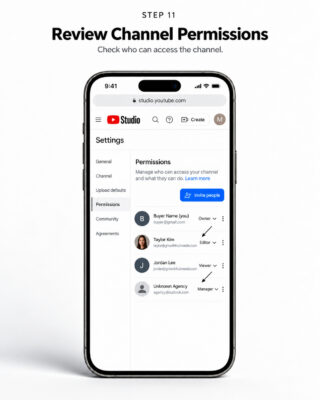
11. Review YouTube Channel Permissions
Brand Account ownership and YouTube Studio Channel Permissions are separate access-control systems.
After becoming Primary Owner, the Buyer should open:
YouTube Studio → Settings → Permissions
YouTube Studio Channel Permissions may include roles such as:
- Owner
- Manager
- Editor
- Editor (Limited)
- Viewer
- Viewer (Limited)
For Google’s official explanation of these roles, see YouTube Channel Permissions.
The Buyer should review all users shown in the permissions section and remove unnecessary access belonging to:
- Previous team members.
- Agencies.
- Editors.
- Managers.
- Contractors.
- Unknown users.
- Other third parties that should no longer have access.
If Channel Permissions were temporarily disabled in order to complete the ownership transfer, the Buyer may configure them again after becoming Primary Owner.
Recommendation: Do not automatically remove legitimate team members if their continued access was included in the agreed transaction. Review each account individually before removing it.
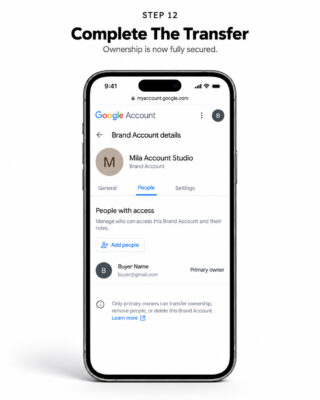
12. Complete the YouTube Channel Transfer
The YouTube channel transfer may be considered complete once all of the following conditions have been satisfied:
- The Brand Account transfer eligibility was confirmed.
- The Buyer used their own secure Google Account.
- The Seller added the Buyer as an Owner.
- The Buyer accepted the ownership invitation.
- The required seven-day ownership period was completed.
- The Seller transferred Primary Ownership to the Buyer.
- The Buyer independently verified their Primary Owner status.
- The Seller’s previous Brand Account access was removed.
- Unknown or unnecessary Brand Account permissions were removed.
- YouTube Studio Channel Permissions were reviewed.
- Unnecessary third-party access was removed.
Once these conditions have been verified, Sebuda may proceed with completion of the transaction in accordance with the applicable Transaction Rules.
Buyers should also review Sebuda’s Rules for Buyers to understand their responsibilities during and after the transaction.
Important Security Recommendations After a YouTube Channel Transfer
Because the Buyer receives ownership through their own Google Account, the Buyer normally does not need access to the Seller’s personal Google Account.
There is generally no reason for the Buyer to change or obtain:
- The Seller’s Google Account password.
- The Seller’s recovery email address.
- The Seller’s recovery phone number.
- The Seller’s Two-Step Verification configuration.
- The Seller’s Passkeys.
- The Seller’s Backup Codes.
The Seller’s personal Google Account should remain private.
After completing the YouTube channel transfer, the Buyer should:
- Keep their own Google Account secure.
- Maintain Two-Step Verification.
- Protect their recovery email and phone number.
- Use a strong and unique password.
- Protect Passkeys and Backup Codes.
- Never share authentication codes or passwords.
- Periodically review active Google Account devices.
- Periodically review Brand Account ownership.
- Periodically review YouTube Studio Channel Permissions.
For additional Google Account and email security guidance, see Sebuda’s How to Secure Your Email article.
This ownership-based transfer method creates a cleaner separation between the Seller and Buyer than transferring an entire Google Account and reduces the risks associated with password sharing and personal email-account recovery.
Visual Guide Notice
The visual examples in this guide are shown using an iPhone/iOS interface. Menu names, options, and layouts may vary depending on the device, operating system, browser, Google Account interface, YouTube version, or future platform updates.